Some people get confused with these 3 patterns (Like me), for you objective c programmers I've rewritten the 3 patterns in example implementations and uploaded them to github, if you can do better, by all means tell me and I'll use your link instead.
Decorator
Builder
Factory Method
All 3 patterns are similar in their achievement of decoupling code, but they have unique purposes and it's necessary to understand these differences, and for those with a visual brain, it's best to see the code alongside reading about them.
If you're a learning cocoa/objective c programmer and you know the time savings incurred from good use of design patterns then you'll gain a lot of key notes from this book:
Cocoa Design Patterns http://en.wikipedia.org/wiki/Decorator_pattern
http://en.wikipedia.org/wiki/Builder_pattern
http://en.wikipedia.org/wiki/Factory_method_pattern
http://en.wikipedia.org/wiki/Decorator_pattern
http://en.wikipedia.org/wiki/Builder_pattern
http://en.wikipedia.org/wiki/Factory_method_pattern
But to see the value in these patterns, it's necessary to consider the alternatives and Anti-Patterns, and even make some real world mistakes...
Decorator Pattern
https://github.com/mrdavenz/DVDecorator
For those without git, the Decorator Pattern code is copy and paste-able at the bottom of this post.
Builder Pattern
https://github.com/mrdavenz/DVBuilder
Here is a decent enough UML diagram of the Builder Pattern (Found here http://www.dofactory.com/Patterns/PatternBuilder.aspx)
Also a pretty good description is found here:
http://www.codeproject.com/KB/architecture/Builder_Design_Pattern.aspx
In the source example, you have a Shop (Director), which has a suite of Custom Builders available, they can be interchanged at run time. If the user asks for a Motorcycle, the Shop owner can simply tell the code to build one using the Builder, and the custom attributes for a motorbike are built.
Without the builder pattern, a developer would simply have more code, and a higher dependence, which over time can reduce readability and discourage the reuse of the code.
So depending on the context, the benefits of the Builder pattern are subtle, but worth using when applicable.
Also don't confuse Builder with Factory:
http://en.wikipedia.org/wiki/Factory_method_pattern
Factory Method
https://github.com/mrdavenz/DVFactoryMethod
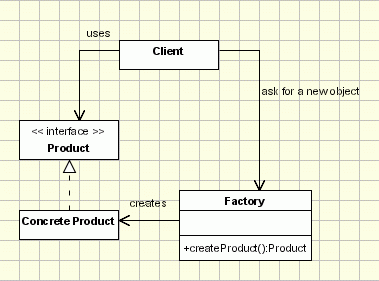
The Factory pattern can almost be seen as a simplified version of the Builder pattern.
In the Factory pattern, the factory is in charge of creating various subtypes of an object depending on the needs.
The user of a factory method doesn't need to know the exact subtype of that object. An example of a factory method createCar might return a Ford or a Honda typed object.
In the Builder pattern, different subtypes are also created by a builder method, but the composition of the objects might differ within the same subclass.
To continue the car example you might have a createCar builder method which creates a Honda-typed object with a 4 cylinder engine, or a Honda-typed object with 6 cylinders. The builder pattern allows for this finer granularity.
Often, designs start out using Factory Method (less complicated, more customizable, subclasses proliferate) and evolve toward Abstract Factory, Prototype, or Builder (more flexible, more complex) as the designer discovers where more flexibility is needed.
Sometimes creational patterns are complementary: Builder can use one of the other patterns to implement which components get built. Abstract Factory, Builder, and Prototype can use Singleton in their implementations.
A great comparison on stackoverflow found here:
what-is-the-difference-between-builder-design-pattern-and-factory-design-pattern
The Builder class is often used to build complex objects step by step, perhaps ordering matters. And is frequently used in conjunction with the Composite pattern, http://en.wikipedia.org/wiki/Composite_pattern, the common composite example in Cocoa UIKit is the use of UIView, where UIView has can have many subViews, that all have a common set of attributes, such as the Frame Size.
In iOS this pattern is analogous to the
Further reading:
builder-vs-decorator-pattern
#import

@interface Car : NSObject

- (NSString *) getDescription;
- (double) getPrice;

@end
#import "Car.h"

@implementation Car

- (id)init
{
    self = [super init];
    if (self) {
        // Initialization code here.
    }

    return self;
}

- (NSString *) getDescription{
    return @"Car";
}

- (double) getPrice{
    return 99999.0;
}

@end
#import "Car.h"

@interface FamilyCar : Car{

@private
    Car *car;
}

- (id)initWithCar : (Car *) theCar;

@property (assign) Car *car;

@end
#import "FamilyCar.h"

@implementation FamilyCar

@synthesize car;

- (id)initWithCar : (Car *) theCar{
    self = [super init];
    if (self) {
        // Initialization code here.
        self.car = theCar;
    }

    return self;
}

- (NSString *) getDescription{

    return [NSString stringWithFormat: @"%@::FamilyCar", self.car.getDescription];
}

- (double) getPrice{

    return  (self.car.getPrice + (self.car.getPrice * 0.1));
}

@end
#import "Car.h"

@interface Sunroof : Car{

@private
    Car *car;
}

- (id)initWithCar : (Car *) theCar;
- (NSString *) getDescription;
- (double) getPrice;

@property (assign) Car *car;

@end
#import "Sunroof.h"

#pragma mark -
#pragma mark Private Methods go here.

@interface Sunroof()

@end

#pragma mark -
#pragma mark Implementation

@implementation Sunroof

@synthesize car;

- (id)initWithCar : (Car *) theCar{
    self = [super init];
    if (self) {
        self.car = theCar;
    }

    return self;
}

- (NSString *) getDescription{

    return [NSString stringWithFormat: @"%@::Sunroof", self.car.getDescription];
}

- (double) getPrice{

    return  (self.car.getPrice + (self.car.getPrice * 0.2));
}

@end
#import "Car.h"

@interface Airbag : Car{

@private
    Car *car;
}

@property (assign) Car *car;

- (id)initWithCar : (Car *) theCar;
- (NSString *) getDescription;
- (double) getPrice;

@end
#import "Airbag.h"

@implementation Airbag

@synthesize car;

- (id)initWithCar : (Car *) theCar{
    self = [super init];
    if (self) {

        self.car = theCar;
    }
    return self;
}

- (NSString *) getDescription{

    return [NSString stringWithFormat: @"%@::Airbags", self.car.getDescription];
}

- (double) getPrice{

    return  (self.car.getPrice + 220.0);
}

@end
I chose to test the code in my App Delegate didFinishLaunchingWithOptions method:
- (BOOL)application:(UIApplication *)application didFinishLaunchingWithOptions:(NSDictionary *)launchOptions
{
    // Override point for customization after application launch.

    Car *standardCar = [[Car alloc] init];

    NSLog(@"standardCar: %@ for $%.2f", standardCar.description, standardCar.getPrice);

    Car *carWithAirbags = [[Airbag alloc] initWithCar : standardCar];

    NSLog(@"carWithAirbags: %@ for $%.2f", carWithAirbags.description, carWithAirbags.getPrice);

    Car *carWithEverythingElse = [[Sunroof alloc] initWithCar : [[FamilyCar alloc] initWithCar: carWithAirbags]];

    NSLog(@"carWithEverythingElse: %@ for $%.2f", carWithEverythingElse.description, carWithEverythingElse.getPrice);

    self.window.rootViewController = self.viewController;
    [self.window makeKeyAndVisible];

    return YES;
}
This example was inspired from the Java implementation here : http://java.dzone.com/articles/design-patterns-revisited-2-de
For some further language agnostic discussion on the matter read here:
http://stackoverflow.com/questions/4768349/builder-vs-decorator-pattern